



Please read the tutorial & field guide & watch 'how-to' videos on the FAQ page (under 'About') before transcribing data!
This project requires a computer / laptop / tablet, it is not suitable for mobile phones.
FAQ

Why are we rescuing this data?
Met Éireann maintains the National Climate Archive which contains numerous paper records of weather observations. We need this data in digital format so that it can be used by meteorologists and scientists to better understand our changing climate.
Why do we need your help?
Our climate is changing, and this data can help us to better understand our historical climate and to contextualise our current and projected climate. The quickest way to access this data is to have many people digitising it at the same time. You will be shown images of rainfall data that have not yet been digitised and asked to transcribe the values and station information.
Why not use optical character recognition (OCR) or Artificial Intelligence (AI) to rescue this data?
There is a lot of research being done to assess the potential use of OCR and AI for the transcription of historical weather observations, some of which shows quite promising results. However, not all records are suitable for this process, and some need a human eye to provide high-quality, accurate data transcriptions.
Can I pick which station to digitise?
Yes, you can. First, select the Province you want to explore: Connacht, Leinster, Munster or Ulster. Next, select the county and station of your choosing. The station data will be released in decadal batches starting with the 1940s and 1950s. This will allow us to extend the current climate record back in time with the completion of each decadal batch.
How do I start digitising?
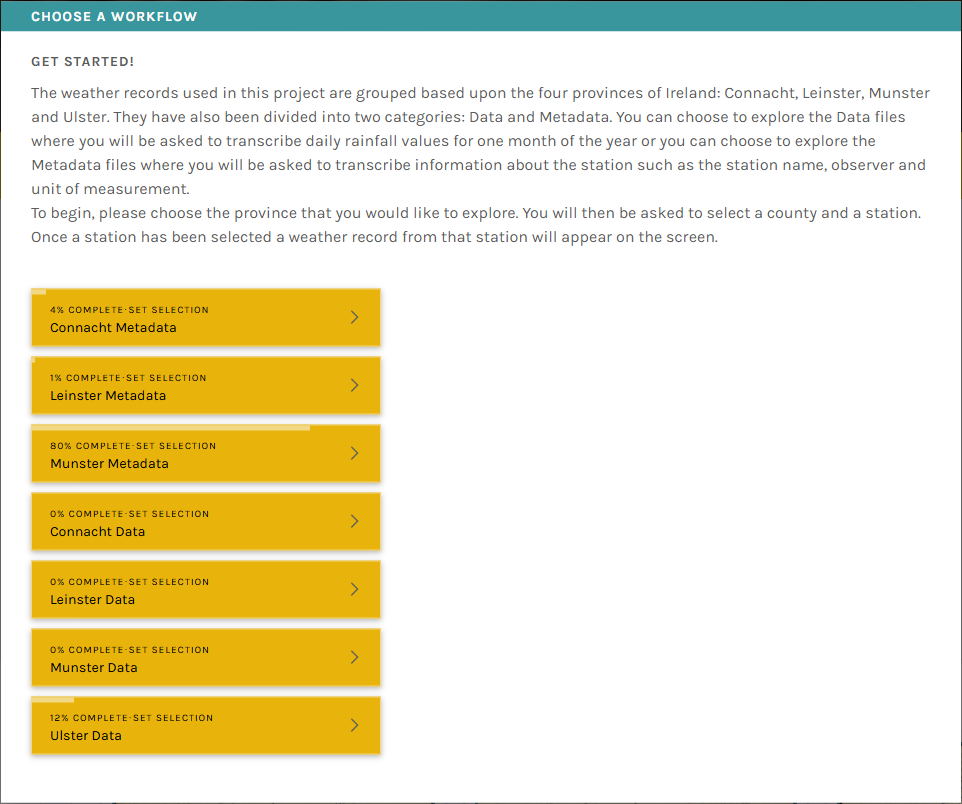
Select 'Classify' from the project home page, this will generate a pop-up box (as in the image below), which provides you with 8 options to choose from. There is one for station information ('metadata') and one for rainfall values ('data') for each province in Ireland (Connacht, Leinster, Munster and Ulster). Select one for your chosen province, from here select the county. This will bring up a menu of all the station files in this county, choose one to begin digitising by clicking on the link under the 'Subject_ID' column. The tutorials and field guides are there to help you along. We recommend reading the tutorial through fully and consult the field guide when you have extra questions, it is worth having a quick look to see the topics covered in the field guide before beginning the process of digitising.
What if I can’t read the numbers on the rainfall sheet?
Don’t worry if you can’t make out some numbers. In this case use your best guess to input numbers that you think you see. You can zoom in/out and use other hand-written values as context.
What do I do if the station name is not on the drop-down menu?
This might occur on occasion where the station name written on the rainfall sheet is different to the official station name. For example, the station 'Seskin' in Carrick on Suir is sometimes written as Carrick on Suir without Seskin on the sheet, which is the official name. To find the correct station name you can navigate to the 'Subject info' at the bottom left of the rainfall sheet on screen, click on this and the station name will be present on the pop-up panel.
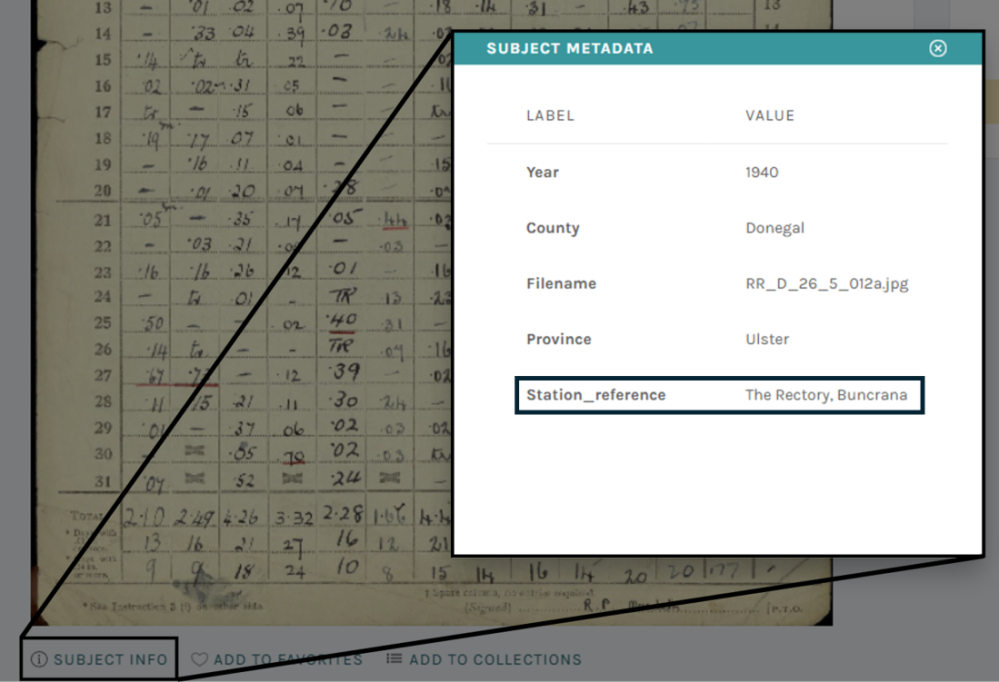
You might wonder why we are asking you to input the station name if we already have it, it is simply to provide volunteers with access to a handwriting sample with an exact match to check, allowing familiarity with the observers handwriting as it is sometimes very hard to decipher, and volunteers need to be able to transcribe the observers name.
What happens if I make a mistake?
No need to worry! We all make mistakes. Each sheet will be transcribed by at least three other people to allow us to minimise the potential for errors.
What do I do when I see a red banner above the image?
A red banner with the text "(already seen)" indicates you are looking at a sheet that you have already digitised.
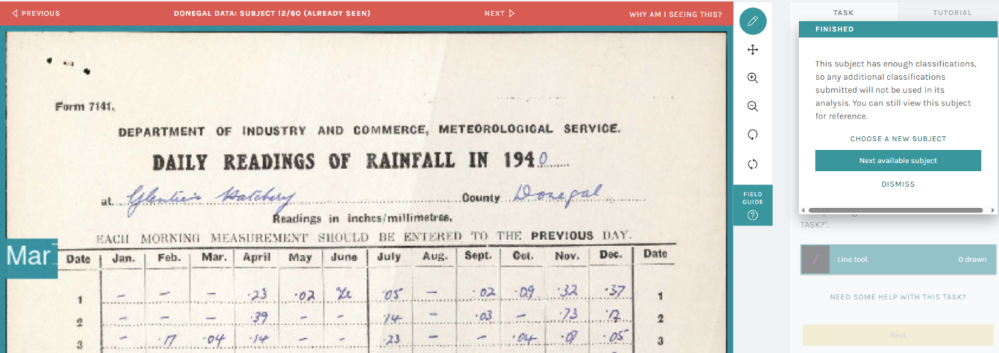
A pop-up box to the right of the rainfall image will provide you with the following choices:
- Choose a new subject
- Next available subject
- Dismiss
Option 1 allows you to choose another subject, option 2 provides you with the next available subject, and option 3 dismisses the warning and allows you to digitise this data again. We recommend choosing option 2 to ensure you digitise new data.
What happens to the data once it is transcribed?
The transcribed data will be checked for consistency i.e., if the value transcribed by three out of four volunteers agrees, we will provisionally accept this as the correct data value. If there is disagreement between the values, the sheet will be resubmitted to the platform for further transcriptions or manually examined to ascertain the true observed value from the original record.
Will the data be made available?
Yes. Once all the transcribed data has been processed and checked, we will make the data freely available for anyone to use. The data will also be submitted to national and international data repositories so that it can be ingested into global climate analyses.
How can I track my progress
You can find individual statistics on your participation in the project through your profile page. Go to the drop-down menu beside your username, click on 'profile', click on 'your stats'. From here you can set the date range and select either 'classifications' to see how many classifications you have made, or 'hours' to see how much time you have spent digitising. This option is quite helpful if you are engaging with this project for Gaisce, Young Social Innovators Award, or similar.
I don't see my question here! Who can I talk to?
You can start discussions about any topic with other volunteers or our team in the Talk section. We will answer any questions you might have about the project, or specific identification issues. You can also stop by just to chat if you like!
The forum is fairly active, please check the Talk section as it is likely someone else has asked the question you want to ask and the answer you are looking for is possibly there already.
How do I start?
We have made some short videos to help you get started. If you want to digitise data, please go to the video directly below, and if you want to digitise metadata, please go to the second video.
Digitising Data
This short video cuts shows you how to digitise data. Watch this if you want a practical video on how to digitise data for the first time or if you want a recap on how to do it. Further help is available in the tutorial, during the transcription process by clicking on "Need some help with this task?", or by clicking into the options in the field guide.
Digitising Metadata
This short video cuts shows you how to digitise metadata. Watch this if you want a practical video on how to digitise data for the first time or if you want a recap on how to do it. Further help is available in the tutorial, during the transcription process by clicking on "Need some help with this task?", or by clicking into the options in the field guide.